Microsoft has published two back-to-back posts on the Windows Insider Blog today, with a Build announcement covering the most significant Windows 11 taskbar and Start menu changes. Windows 11 has been available since launch. According to the Windows Insider Blog, published May 15, 2026, Microsoft is releasing new Insider Preview builds today. These are “Build 26300.8493” for the Experimental channel, “Build 26220.8474” for the Beta channel and “Build 28020.2134” for the Experimental (26H1) channel. The Taskbar and Start improvements are rolling out in the Experimental channel starting Today.
Windows 11 Taskbar Can Now Move to Any Screen Edge
This is the feature Windows 11 users have been requesting since the operating system launched in 2021. Starting today, Windows Insiders in the Experimental channel can position the taskbar on any edge of the screen, be it bottom, top, left or right, via Settings > Personalisation> Taskbar > Taskbar Behaviours.
The implementation goes beyond simply moving the bar. Users can choose icon alignment for every taskbar position: top-aligned or centred when the taskbar is on the left or right, and left-aligned or centred when the taskbar is on the top or bottom. Start, Search, and other flyouts also open relative to the taskbar’s position, and when the taskbar is on the top, Start opens from the top.

For users who rely on the “Never combine” taskbar buttons setting, a vertical taskbar layout now displays each app window as a separate labelled button, making it easier to identify and switch between open windows at a glance.
Microsoft acknowledges that the feature is not fully complete in today’s build. Auto-hide and tablet-optimised taskbar are not yet supported in alternate positions, touch gestures for alternate positions are still in progress, and Search boxes are not yet supported, but will appear as a search icon for now. Microsoft is also evaluating additional features, including different taskbar positions per monitor and drag-and-drop repositioning.
A Smaller Taskbar: More Screen, Less Bar
A compact taskbar option is also rolling out today in the Experimental channel. When the smaller taskbar is enabled via Settings > Personalisation> Taskbar > Taskbar Behaviours> Show smaller taskbar buttons, both the icon size and taskbar height become smaller, reclaiming vertical space for open applications. No restart or sign-out is required to apply the change.

The smaller taskbar is designed particularly for users on smaller devices who want to maximise screen space, while core elements, including Start, Search and the system tray, scale appropriately to remain aligned and consistent. The default taskbar size remains unchanged for users who do not opt in.
Start Menu Gets a Meaningful Rethink
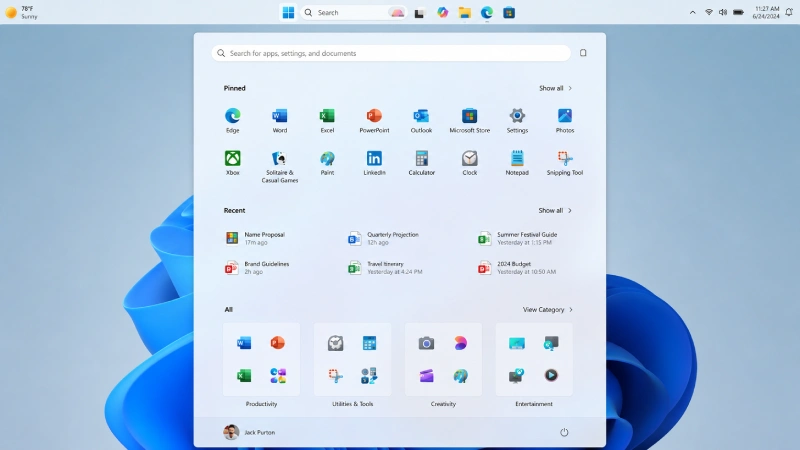
The Start menu changes are rolling out across the Experimental channel over the coming weeks rather than all at once, and they address long-standing complaints about control and clarity.
Section-level toggles are coming to independently show or hide the Pinned, Recommended and All sections (one toggle per section). A separate control for file recommendations will allow users to disable file suggestions in Start without affecting recent files in File Explorer or jump lists. Today, those are tied together, which creates an awkward trade-off for users who want to clean up Start without losing quick file access elsewhere.

A Start menu size setting will let users choose Small or Large as a consistent preference across displays. The option to hide your name and profile picture in Start is also coming, useful for screen sharing, presenting or streaming scenarios where personal details should stay off camera.
On the content side, Microsoft is renaming the “Recommended” section to “Recent” to better reflect what it primarily shows, ie, the recently installed apps and recently used files. The company states it is keeping recently installed apps visible, noting that both users and developers have said this visibility is important for app discovery. File relevancy in the section is also being improved, refining which files appear and how they are ordered to reduce less relevant items.
Widgets and Search
Beyond Taskbar and Start, today’s build includes two smaller but useful behavioural changes. The Widgets taskbar badge colour will now match the user’s Windows accent colour instead of always appearing red, reducing the visual urgency of widget notifications. Microsoft is also testing engagement-based quieting; users who rarely interact with Widgets may have taskbar badging turned off automatically, while engaged users retain their existing settings.
For Windows Search, files and apps will now more reliably appear ahead of web suggestions when the search term more closely matches local content. Microsoft has noted that additional relevance improvements are expected in upcoming builds.
Channel and Build Notes
Today’s Experimental channel build is 26300.8493. The Beta channel receives Build 26220.8474. Insiders on the Experimental (26H1) channel, including those on Canary 28000 series, receive Build 28020.2134. A separate build for Experimental Future Platforms (Canary 29500 series) lands at Build 29591.1000. Microsoft notes that existing Beta Channel Insiders on Windows 11 version 26H1 are currently receiving the same build version as Experimental (26H1), with separate builds for these channels expected in the coming weeks.
All Taskbar and Start improvements described here are exclusive to the Experimental channel for now. Microsoft has not confirmed a timeline for when these features will reach the Beta channel or stable Windows 11 builds.
What to Watch Next
The Taskbar position feature is the most impactful Windows 11 personalisation update in years, and the fact that it launches with known gaps around auto-pilot, touch and search box support means further Experimental builds over the coming weeks will be worth tracking closely. Users enrolled in the Experimental channel can try the new settings today via Settings > Personalisation > Taskbar > Taskbar Behaviours.